Typogram Swatches: The Figma Plugin to Search, Discover, and Apply Color Palettes Instantly
As designers who care deeply about color systems and expressive typography, we built Typogram Swatches to make color exploration in Figma feel less mechanical and more friendly to discover color ideas and inspirations.
Typogram Swatches is Typogram’s new Figma color palette plugin designed to help designers explore endless color possibilities quickly and intuitively. Whether you’re designing a UI, building a brand identity, crafting illustrations, or experimenting with generative layouts, this plugin helps you move from inspiration to application in seconds. Bonus – it also works with Figjam!
So, if you’ve ever searched:
- “How do I test multiple color palettes in Figma?”
- “How do I search color palettes by hex code?”
- “What’s the best Figma plugin for building color systems?”
- “How can I save and reuse custom color palettes in Figma?”
Typogram Swatches is built to answer those exact questions.
Why We Built Typogram Swatches
In our own workflow, we often found color exploration in Figma to be fragmented. You manually build swatches, scroll through external palette websites, or laboriously copy hex codes and meticulously select colors one by one just to test variations. None of it feels fluid.
As designers who are passionate about how typography and color interact, we wanted a Figma plugin that:
- Encourages experimentation
- Supports cohesive color systems
- Speeds up iteration
- Makes palette testing feel effortless
Typogram Swatches brings structured color exploration directly into your Figma workflow.
What Makes Typogram Swatches Different?
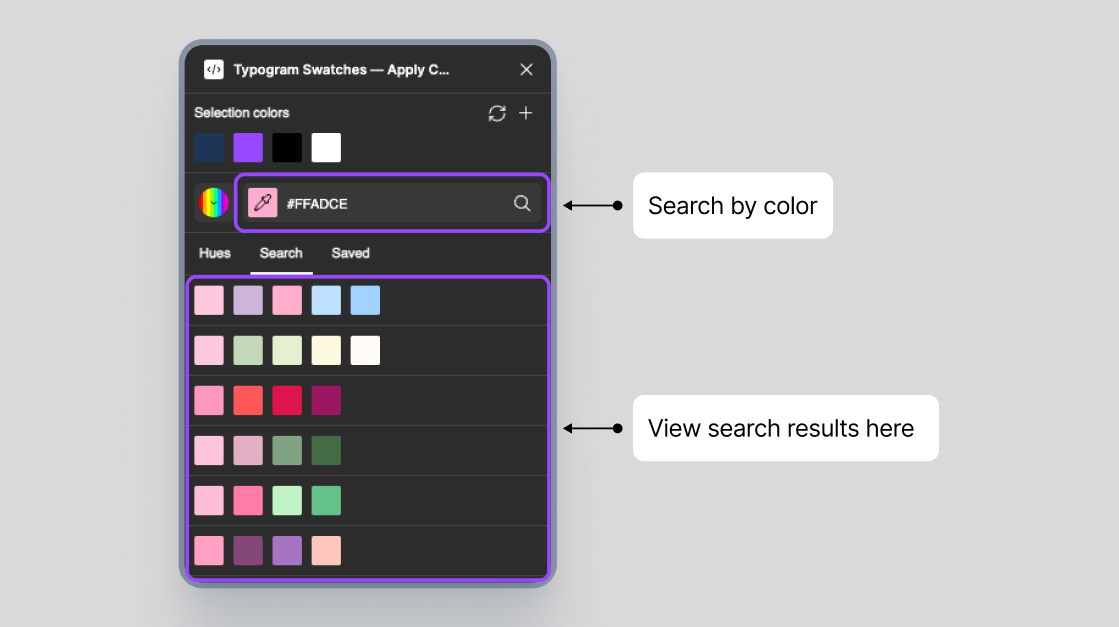
Search color palettes by exact matches and similar hues
Most tools only return palettes with an identical hex value.
Typogram Swatches lets you enter any HEX code and discover palettes that also include matching colors and similar hues close to your value, matched by proximity. This is especially helpful when:
- You already have a brand color
- You want complementary or analogous tones
- You’re refining subtle color variations
- You’re building a scalable color system
You get both rigid matching and flexible exploration to help you expand your inspiration and produce more design ideas.
Browse curated color palettes inside Figma
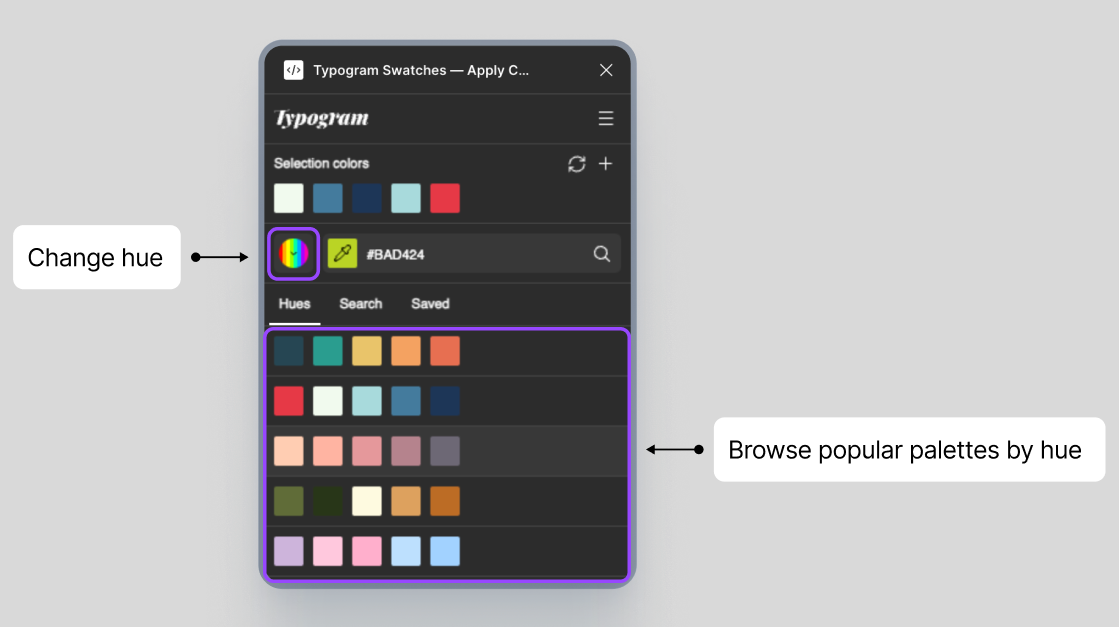
You can explore palettes by:
- Hue (red, blue, yellow, and more)
- Popular, human-made curated collections
- Gradient-based color systems
This makes it easy to move between structured UI palettes and expressive branding combinations — all without leaving Figma.
Instantly apply color palettes to your design
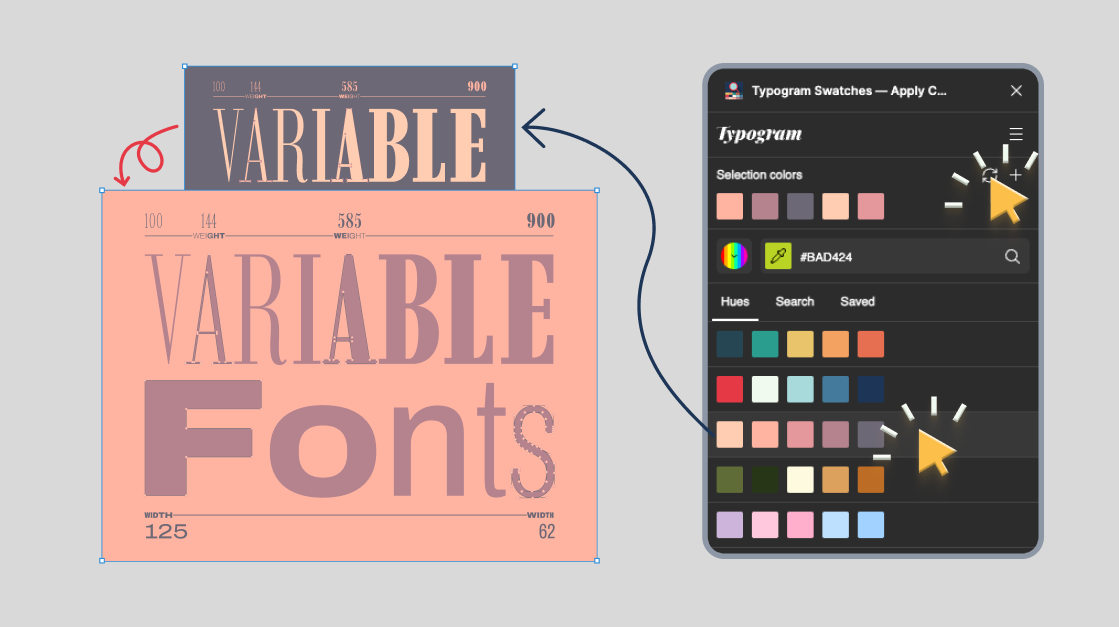
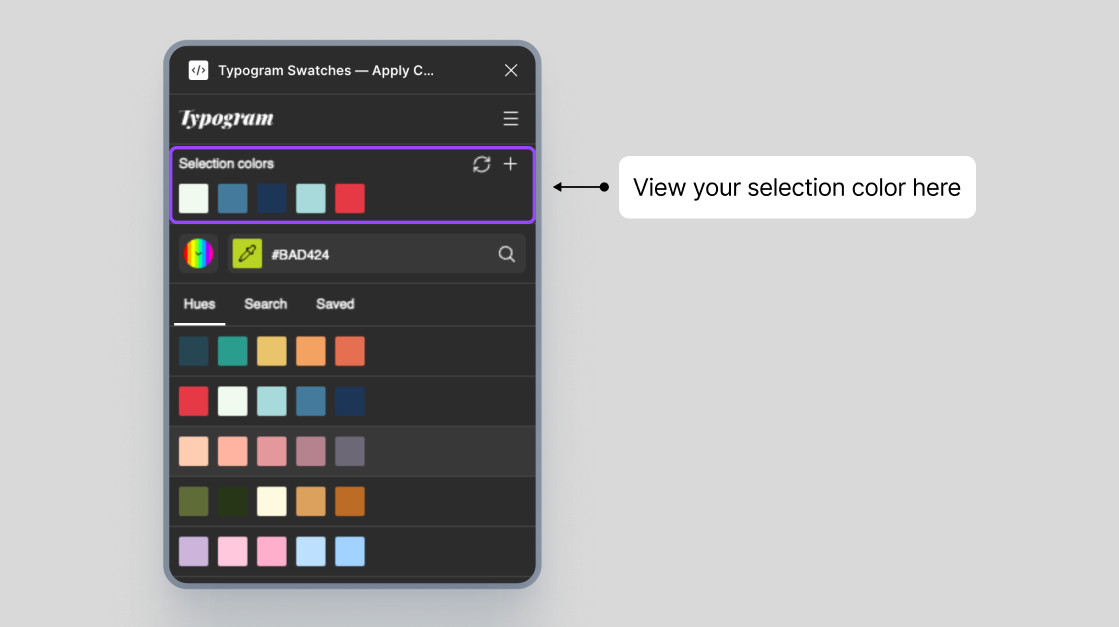
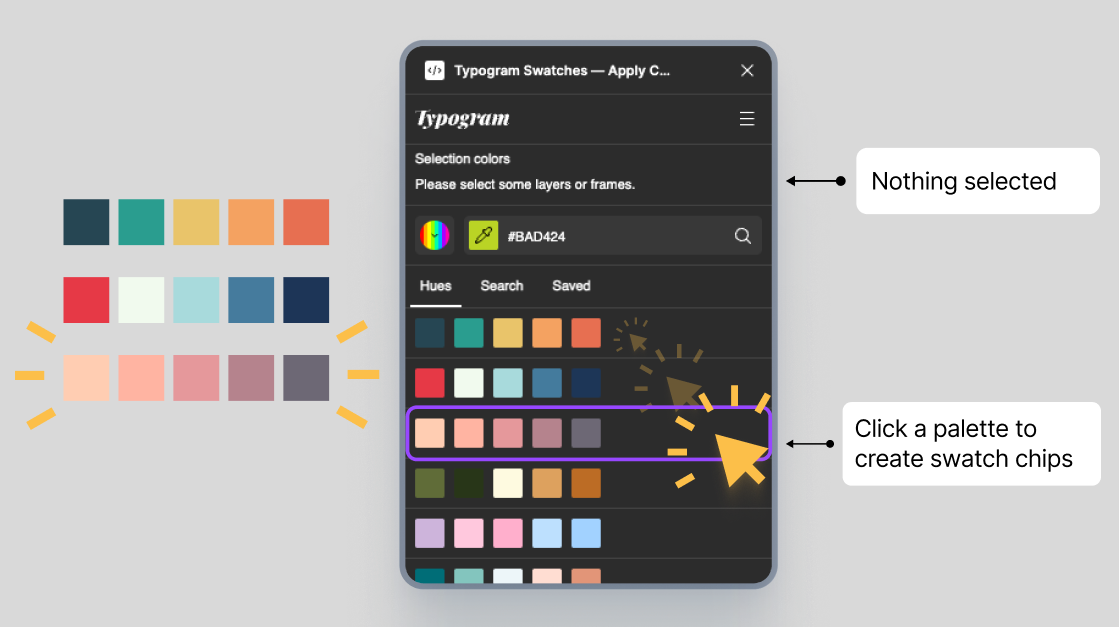
Select any frame or layers in Figma. Typogram Swatches instantly shows the current selection color for preview and editing. Click any palette under “Hues” to instantly apply its colors to discover new color ideas. If no layer is selected, the plugin automatically generates organized color swatch chips on your canvas (See more in “Special Tip: Create Color Swatch Chips from Palettes”).
This is perfect for:
- Moodboards
- Brand exploration
- UI theme testing
- Visual experimentation
If you’ve searched “How do I quickly test different color schemes in Figma?” — this is the solution.
Special Tip: Create Color Swatch Chips from Palettes
When there is a selection, clicking on a palette will apply that palette to the selected artwork; when there is no layer selected, clicking on a palette will create color swatch chips, which are rectangles for each color in the palette.
Create and save custom color palettes
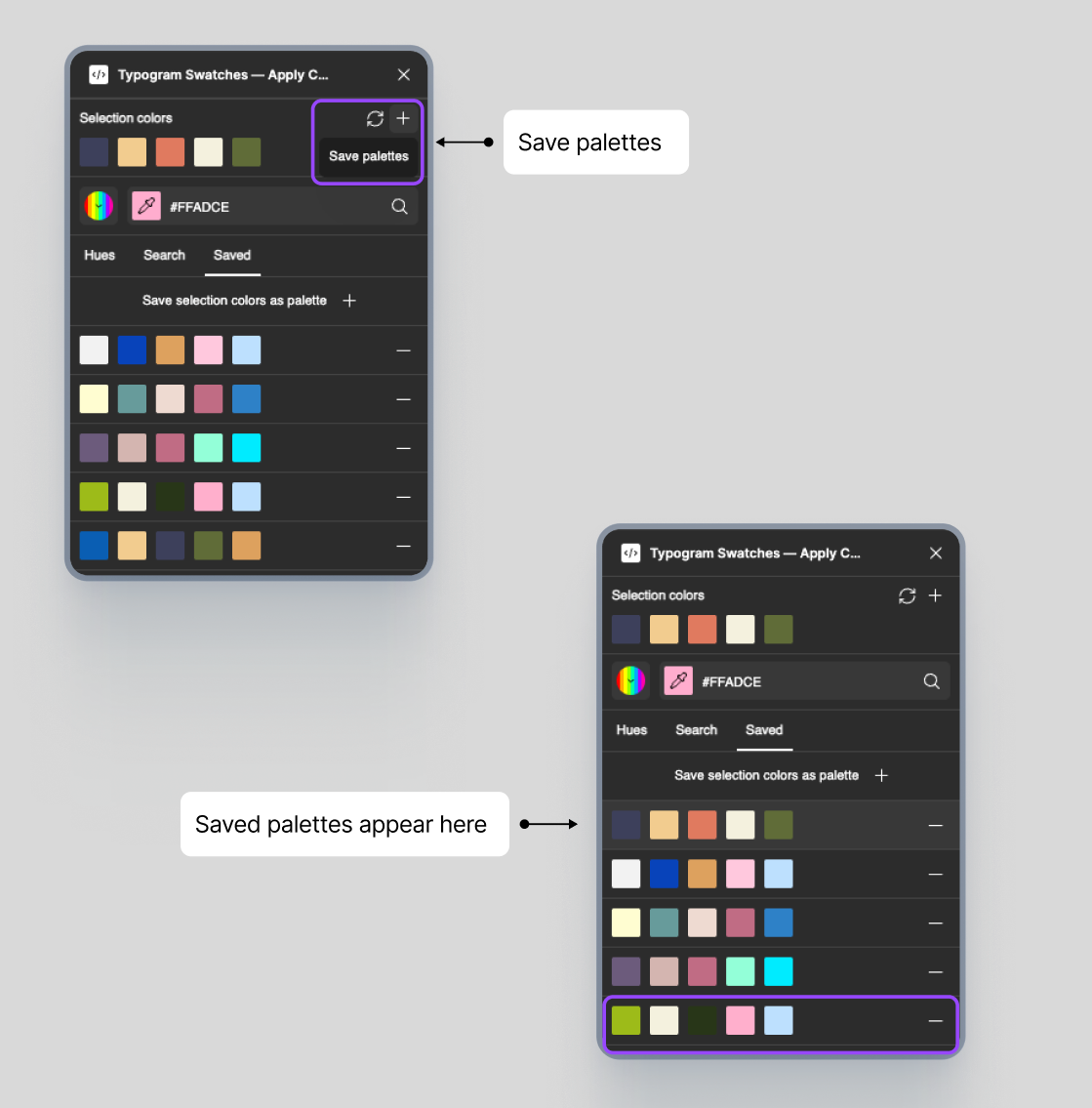
When you are happy with the colors in your current selection, save those colors as a reusable custom palette. You can do this by generating color swatch chips with no selection, or after refining colors in your artwork, select the rectangles or objects that contain the colors you like. This lets you build a personal library of favorite colors that you can quickly apply as swatch layers in future designs, which is helpful when you can:
- Reapply brand systems instantly
- Test multiple UI themes
- Maintain visual consistency across projects
- Iterate faster without rebuilding styles
This makes Typogram Swatches not just a palette browser — but a practical color system tool for Figma.
Special Tip: Swap Colors for New Looks
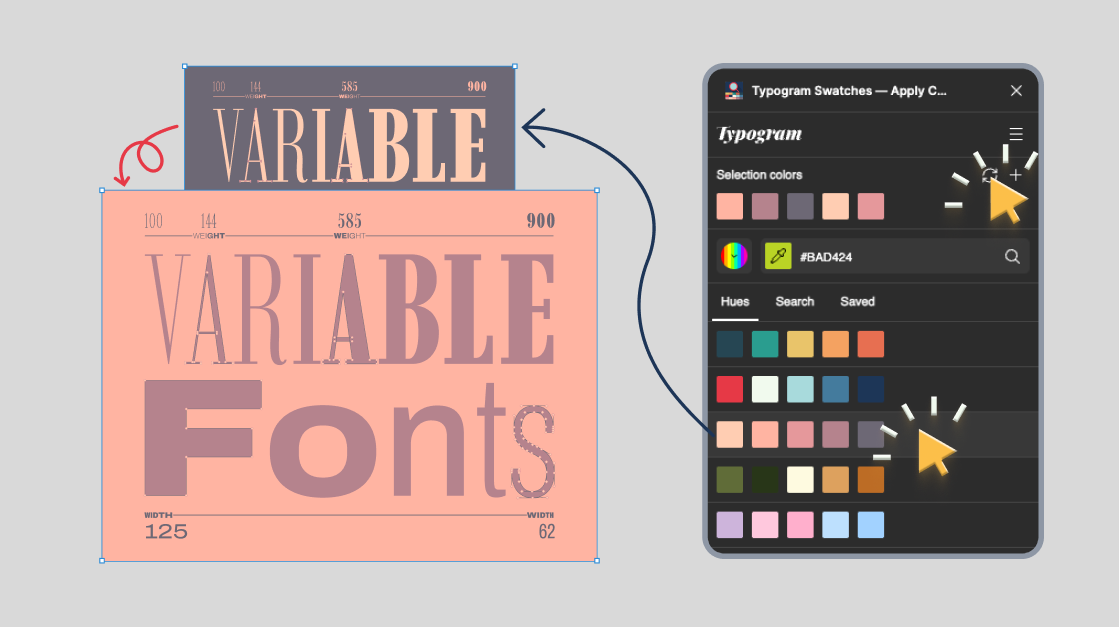
If you like a palette but want to see different arrangements of those colors in your artwork, click the Swap Colors icon to change how the palette colors are assigned. Clicking the same palette again will reshuffle the colors within your artwork, so even with the same palette, you can generate completely different looks while staying within the same color family.
Who Is This Figma Color Plugin For?
Typogram Swatches is built for:
- UI designers building product interfaces
- Product designers testing themes and states
- Brand designers creating cohesive color systems
- Graphic designers exploring visual identity
- Illustrators and marketing designers
If you care about structure, hierarchy, and scalable design systems — not just random swatches — this plugin supports a more intentional approach to color.
A Better Way to Build Color Systems in Figma
Color isn’t decoration. It defines hierarchy, accessibility, mood, and clarity.
Typogram Swatches helps you:
- Explore cohesive color palettes
- Search palettes by HEX
- Test multiple color systems quickly
- Save and reuse custom palettes
- Streamline your Figma workflow
All inside the tool you’re already working in.
Instead of duplicating frames or jumping between external palette generators, you can experiment, apply, and iterate in seconds.
If you’re looking for a faster way to explore color palettes in Figma or build structured color systems for UI and branding projects, Typogram Swatches was designed for you.